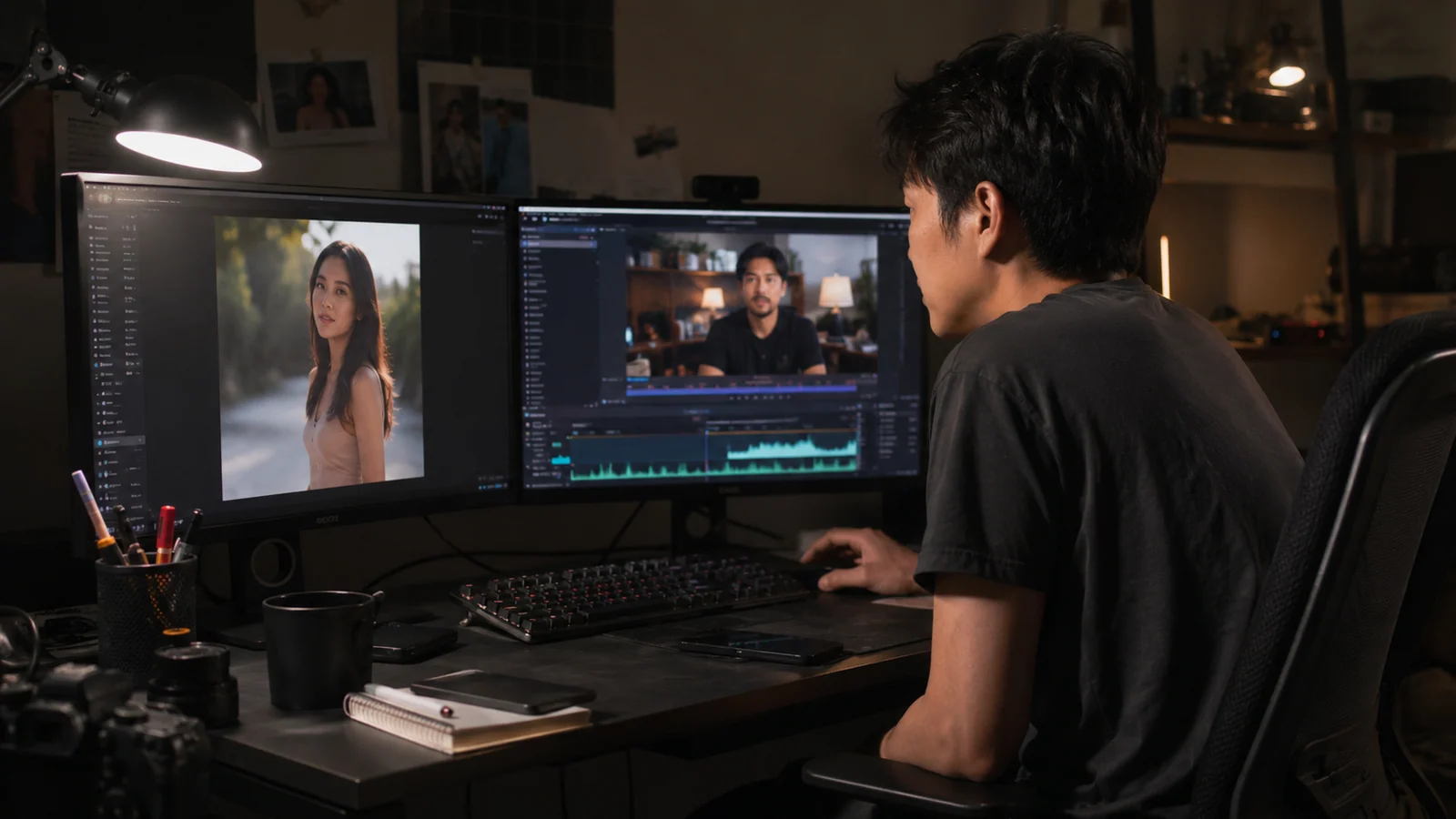
Seedance 2.0 Mini is useful when a talking shot needs more than mouth movement. It can combine a character reference, audio reference, scene direction, and widescreen or vertical composition into one generated clip.
The quality of the output depends heavily on what happens before generation.
What you need
Prepare four inputs:
- A clean character image.
- A final voice file.
- A short motion prompt.
- The correct aspect ratio and duration.
Step 1: Prepare a lip-sync-friendly portrait
Use a chest-up or waist-up frame. Keep the face large enough to read clearly. The eyes and mouth should be unobstructed, and the character should face near the camera. Avoid a source image with an already exaggerated expression.
Leave room for movement. If the crop ends exactly at the shoulders or hands, motion can create unstable edges.
Step 2: Finalize audio first
Generate the CelestiAI voice or upload your own recording. Listen to the complete file before creating video.
Check:
- pronunciation of names,
- pauses after important claims,
- consistent energy,
- no clipped first or last word,
- and a duration appropriate for the selected video setting.
If the delivery is too fast, reduce the script. Speeding up the voice often makes the result feel less human.
Step 3: Write a motion prompt
The motion prompt should describe visible behavior, not repeat the script.
Example:
Natural founder speaking directly to camera. Subtle head movement, occasional small hand gesture, steady eye contact, relaxed shoulders, stable identity, unchanged studio environment, realistic conversational pacing.
Avoid stacking conflicting actions. “Sitting, walking, turning, presenting, and holding a product” asks one short clip to solve too many problems.
Step 4: Add the references in CelestiAI
In UGC Maker:
- Select Seedance 2.0 Mini.
- Add the character image as the image reference.
- Generate, record, or upload the voice audio.
- Choose 9:16 for short-form or 16:9 for YouTube.
- Paste the motion prompt.
- Generate the clip.
Step 5: Review the right frames
Do not judge only the first frame. Review:
- the first spoken word,
- wide mouth shapes,
- pauses and blinks,
- the largest hand gesture,
- and the final frame.
If the mouth is unstable, try a clearer portrait and a calmer prompt. If identity drifts, reduce movement. If the scene warps, remove unnecessary background action.
Step 6: Edit around the strongest take
Use the talking shot for the hook, transitions, and conclusion. Cover complex explanations with product footage, screen recordings, or examples. This improves retention and reduces the amount of uninterrupted generated motion.
Recommended prompt patterns
Product review: relaxed creator holding one product near chest level, small natural gesture, steady camera.
Founder lesson: seated presenter, calm authority, subtle head movement, occasional open-palm gesture.
Personal story: warmer expression, gentle posture changes, no large gestures, stable background.
Common mistakes
- Generating before the voice is approved.
- Using a tiny face inside a wide source image.
- Asking for dramatic body movement during precise lip-sync.
- Covering the mouth with a hand or product.
- Putting multiple people in the reference shot.
The best result starts with controlled inputs. Treat the character image and audio as production assets, not rough ideas.
Try Seedance 2.0 Mini in UGC Maker or compare it with the Kling Avatar workflow.