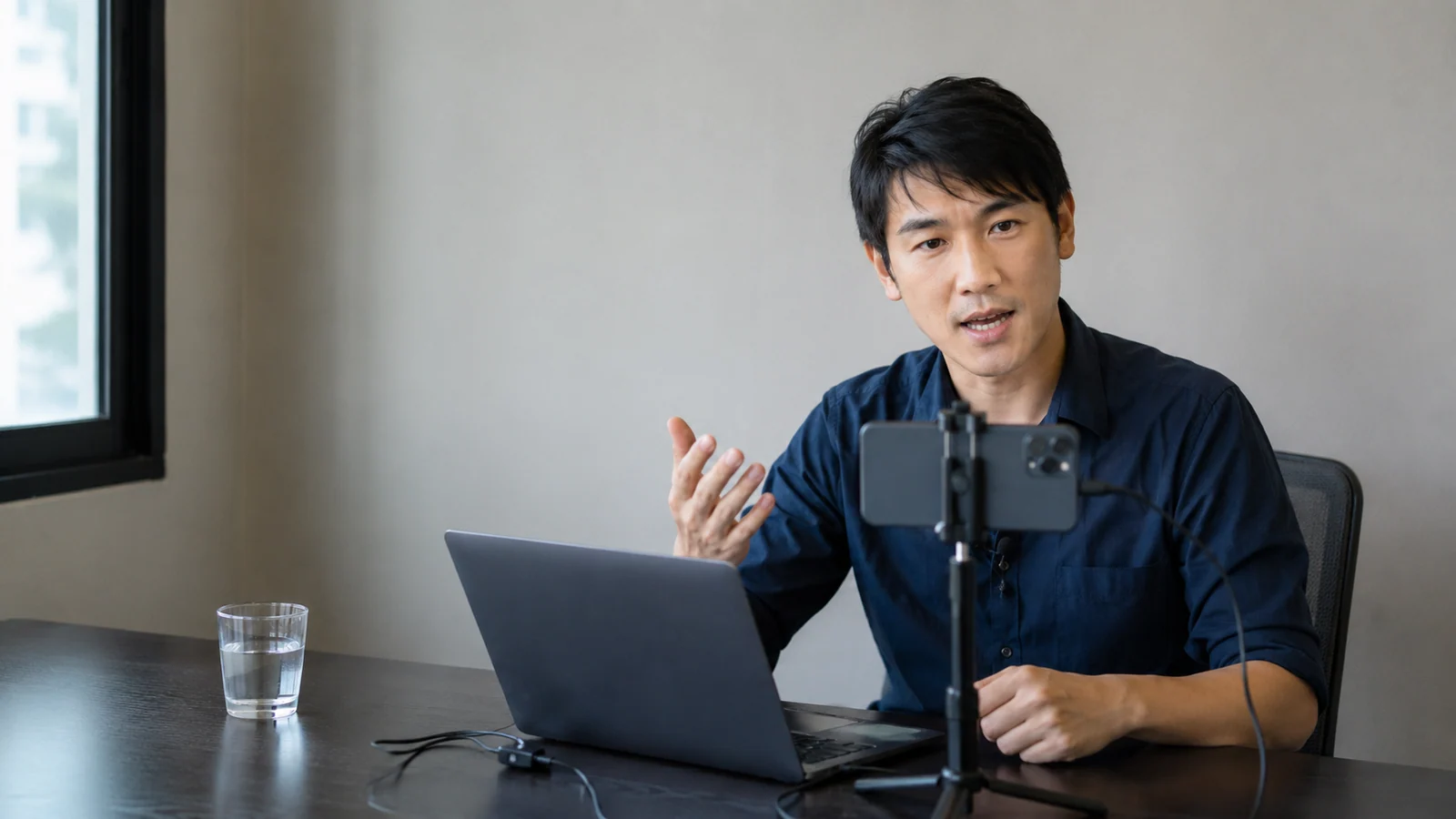
Kling Avatar is a focused choice for direct-to-camera communication. It is especially useful for sales explanations, onboarding messages, localized offers, founder updates, and short educational segments.
When to choose Kling Avatar
Choose Kling when the main job is to make one portrait speak clearly. If the concept requires wider environmental motion or more cinematic action, consider Seedance instead.
Kling works best when:
- one presenter is visible,
- the face is clear and front-facing,
- the audio is final,
- the shot does not require complex product handling,
- and the camera stays stable.
Step 1: Select or create the presenter
In UGC Maker, choose a creator from the library or upload a portrait you have permission to use. You can also create a personal-brand scene with GPT Image 2 before opening the Kling workflow.
Use natural lighting and a neutral expression. A chest-up frame gives the face enough detail while leaving room for small motion.
Step 2: Build a spoken script
For a 20–30 second sales presenter, use:
- Problem: one sentence.
- Mechanism: how the solution works.
- Proof: one concrete reason to believe.
- Action: one CTA.
Example:
If creating a new UGC ad takes your team a week, the bottleneck is not editing—it is rebuilding the production every time. CelestiAI lets you reuse the creator, voice, and format while testing new hooks. Start with one product and make your first three variations.
Step 3: Choose the voice source
Turn on CelestiAI voice to generate speech from the script, or upload a finished audio file. Use uploaded audio when exact timing, emotion, or a specific approved voice performance matters.
Review pronunciation before generation. The video follows the audio; it cannot repair a rushed or unclear performance.
Step 4: Add a restrained motion prompt
Describe the delivery:
Friendly product specialist speaking directly to camera, natural blink rate, subtle head movement, small conversational gestures, stable portrait identity, unchanged background.
The more direct the use case, the simpler the prompt should be.
Step 5: Generate and inspect
Check lip alignment on strong consonants, eye stability, jaw shape, and the transition into pauses. If a single sentence causes visible instability, split the video into shorter clips and cover the cut with relevant B-roll.
Step 6: Turn one presenter into a campaign
Keep the presenter, scene, proof, and CTA stable. Change only the first hook across three versions. This creates a controlled test instead of three unrelated ads.
Once a hook wins, localize the script or test a different proof point. Consistency makes performance data easier to interpret.
Kling versus Seedance
| Need | Recommended starting point |
|---|---|
| Direct portrait speech | Kling Avatar |
| CelestiAI text-to-voice workflow | Kling Avatar |
| Wider scene motion | Seedance 2.0 Mini |
| Reference image plus reference audio scene | Seedance 2.0 Mini |
| Fast sales-message variations | Kling Avatar |
Use the simplest engine that fits the shot. Production quality often improves when each clip has one clear responsibility.
Create a Kling talking presenter or read the complete AI UGC guide.